How prompt formatting boosts command-line efficiency

Default shell prompts waste your time. Every directory change, every command failure, every context switch forces you to mentally reconstruct where you are and what just happened. Poorly formatted prompts create cognitive friction that accumulates across hundreds of daily commands. Formatting shell prompts enhances usability by displaying context like user, directory, git status, and exit codes, reducing errors and improving navigation efficiency. This guide reveals how strategic prompt formatting transforms your command-line workflow from frustrating to frictionless.
Table of Contents
- Key takeaways
- Why does prompt formatting matter for sysadmins?
- Core mechanics of prompt formatting in Bash and Zsh
- Balancing aesthetics and performance: prompt formatting tools and best practices
- Practical tips for applying prompt formatting in your workflow
- Enhance your command line with the Bash Prompt Generator
- FAQ
Key Takeaways
| Point | Details |
|---|---|
| Prompt formatting | Formatting shell prompts displays critical context such as user, directory, git status, and exit codes to reduce errors and speed up navigation. |
| ANSI color usage | ANSI color codes and careful wrapping enable dynamic, legible prompts without breaking line editing. |
| Lightweight design | Keep formatting lightweight to balance aesthetics and performance while preserving responsiveness. |
| Bash vs Zsh | Prompt customization differs between Bash and Zsh, requiring shell specific approaches to escapes and variables. |
| Tools for speed | Utilities like prmt help render informative prompts quickly for sysadmins managing many servers. |
Why does prompt formatting matter for sysadmins?
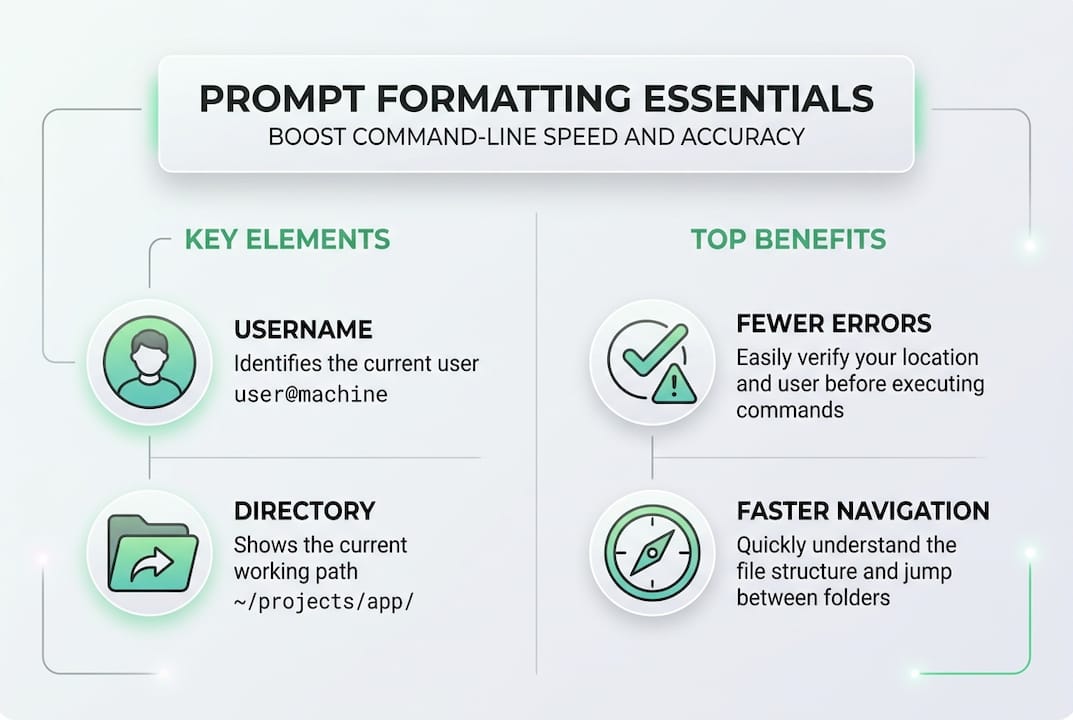
Your prompt is the most frequently viewed interface element in your entire workflow. Every command you type starts by reading your prompt to understand context. When prompts display critical information like current user, working directory, git branch, and previous command exit status, you make faster decisions and catch errors immediately. Visual cues through color coding transform this information from noise into actionable intelligence.
Multi-line prompts solve the clarity problem that single-line prompts create. When your prompt shows hostname, full path, git status, and timestamp on separate lines, complex commands become easier to read and edit. You avoid the common mistake of running destructive commands in the wrong directory because your eyes immediately register the path. Exit code indicators catch script failures the moment they happen, eliminating the need to scroll back through output searching for error messages.
Pro Tip: Add exit code display to your prompt using "$?` to instantly see when commands fail, even if they produce no visible output.
Research shows that formatted prompts displaying contextual information reduce navigation errors by making critical details visible at a glance. Color differentiation helps your brain process information faster. Green for successful operations, red for failures, yellow for warnings creates an intuitive visual language. When you SSH into multiple servers simultaneously, hostname color coding prevents the catastrophic mistake of running commands on production instead of staging.
The Bash prompt generator simplifies creating these formatted prompts without memorizing complex escape sequences. System administrators working across dozens of servers need prompts that communicate essential information instantly. Formatting achieves this by transforming the prompt from a simple dollar sign into an information-rich dashboard. Your working memory stays focused on solving problems instead of tracking basic context.
Core mechanics of prompt formatting in Bash and Zsh
Bash uses the PS1 variable to define your primary prompt string. This variable accepts literal text mixed with special escape sequences that insert dynamic information. Common escapes include \u for username, \h for hostname, \w for full working directory path, and \$ for a dollar sign that changes to hash when running as root. These escapes update automatically as context changes, eliminating manual prompt updates.
ANSI escape sequences inject color and formatting into terminal output. The sequence \e[31m switches text to red, while \e[0m resets formatting to defaults. Bash requires wrapping these non-printing sequences in \[ and \] brackets. Without proper wrapping, the shell miscalculates line length, causing cursor misalignment when editing long commands. The GNU Bash Manual specifies setting PS1 with escapes and ANSI colors wrapped correctly to avoid these cursor issues.
PROMPT_COMMAND provides advanced customization by executing commands before displaying each prompt. You can capture git branch names, check exit status of the previous command, or query system metrics. This variable accepts any valid shell command or function name. Dynamic information like git branch and exit status gets added through PROMPT_COMMAND, keeping your prompt current without manual intervention.

Zsh uses different syntax but similar concepts. The PROMPT variable replaces PS1, and percent escapes like %n for username and %~ for directory replace backslash escapes. Zsh automatically handles non-printing character wrapping, eliminating the bracket requirement. Both shells support conditional formatting, allowing prompts to change appearance based on user privileges, command success, or environment variables.
| Element | Bash Syntax | Zsh Syntax | Purpose |
|---|---|---|---|
| Username | \u |
%n |
Display current user |
| Hostname | \h |
%m |
Show machine name |
| Directory | \w |
%~ |
Full working path |
| Root indicator | \$ |
%# |
Changes for root user |
| Exit status | $? in PROMPT_COMMAND |
%? |
Previous command result |
| Color wrapping | \[\e[31m\]text\[\e[0m\] |
%F{red}text%f |
Apply ANSI colors |
Pro Tip: Test prompt changes in a subshell by running bash or zsh before modifying your configuration files to avoid breaking your current session.
The custom PS1 prompts tool generates valid syntax for both shells, eliminating trial and error. Proper escape wrapping prevents the frustrating cursor alignment bugs that plague manually crafted prompts. Understanding these mechanics lets you debug formatting issues and customize prompts beyond preset templates.
Balancing aesthetics and performance: prompt formatting tools and best practices
Prompt rendering speed directly impacts your workflow responsiveness. Every millisecond of delay between pressing enter and seeing your next prompt compounds across thousands of daily commands. The prmt prompt tool delivers sub-millisecond rendering over SSH versus heavier frameworks like Starship or Oh My Zsh that introduce latency. When working on remote servers with network lag, lightweight prompts maintain the instant-feeling interaction that keeps you in flow state.
Starship offers extensive customization through TOML configuration files and supports multiple shells. It displays git status, language versions, cloud context, and dozens of other modules. However, this richness comes at a cost. Starship can add 50-200ms to prompt rendering, noticeable over high-latency connections. Oh My Zsh provides beautiful themes and plugins but increases shell startup time significantly. Zsh offers highly customizable themes but slower startup compared to Bash.
| Tool | Render Speed | Features | Best For |
|---|---|---|---|
| prmt | Sub-millisecond | Minimal, fast, SSH-optimized | Remote server work, speed priority |
| Starship | 50-200ms | Extensive modules, multi-shell | Local development, feature-rich needs |
| Oh My Zsh | Variable, slower startup | Themes, plugins, community | Interactive Zsh users, aesthetics focus |
| Plain Bash PS1 | Instant | Basic escapes, full control | Scripting, maximum portability |
Best practices demand keeping prompt render time under 5ms for comfortable remote usage. Achieve this by minimizing external command calls in PROMPT_COMMAND. Each git status query, each grep operation, each subprocess adds latency. Use shell built-ins whenever possible. Avoid calling python, ruby, or other interpreters just to format strings. Cache expensive operations and refresh them only when directory changes.
Common pitfalls include misaligned cursors from unwrapped ANSI codes, slow git status queries in large repositories, and information overload that makes prompts unreadable. A prompt displaying 15 different metrics creates visual noise instead of clarity. Focus on the essential context you actually use: current directory, git branch when in repositories, exit status of previous commands, and user/host when working on multiple systems.
Pro Tip: Balance functional information like exit status and directory path over decorative elements like emojis or ASCII art for maximum clarity and speed.
The prompt customization tools at neikiri.dev generate optimized PS1 strings that avoid common performance traps. They produce clean code using shell built-ins instead of external commands. For sysadmins managing production systems, reliability and speed trump visual flair. Choose tools and techniques that maintain sub-5ms rendering even under load.
Practical tips for applying prompt formatting in your workflow
Start by backing up your existing shell configuration. Copy .bashrc or .zshrc to a backup file before making changes. This safety net lets you revert instantly if new prompts break functionality. Open your shell config in an editor and locate the existing PS1 or PROMPT definition. Comment out the old prompt instead of deleting it, preserving your rollback option.
Add colors incrementally. Begin with a simple two-color scheme: one color for the prompt structure, another for the command input area. Test this change by sourcing your config file with source ~/.bashrc instead of opening a new terminal. Verify cursor alignment by typing long commands and using arrow keys to navigate. Misalignment indicates improper ANSI code wrapping.
Introduce dynamic elements one at a time. Add git branch display first, testing in repositories to confirm it updates correctly. Then add exit status indicators, verifying they show red for failures and green for success. Finally, incorporate timestamp or system load if needed. This incremental approach isolates problems to specific additions instead of debugging a complex prompt all at once.
Test every change over SSH before finalizing. What feels instant on localhost may lag noticeably over network connections. SSH into your own machine using ssh localhost to simulate remote conditions. Time your prompt rendering by running time (for i in {1..100}; do true; done) and observing how quickly prompts appear. Target under 5ms per prompt for comfortable interaction.
Pro Tip: Use prmt or similar lightweight tools for remote server prompts, reserving feature-rich frameworks like Starship for local development machines where latency matters less.
Custom prompt string best practices recommend using PROMPT_COMMAND sparingly and testing prompt performance over SSH, favoring Bash for scripts and Zsh for interactive use. Keep a minimal prompt in your root user configuration to maintain safety. Root prompts should clearly indicate elevated privileges through color and symbols, preventing accidental destructive commands.
Document your prompt customizations in comments within your config file. Explain what each section does and why you chose specific colors or information displays. Six months later, you will appreciate these notes when troubleshooting or adapting prompts for new environments. Share working configurations across your server fleet using configuration management tools, ensuring consistent prompts everywhere you work.
The custom PS1 prompts generator creates documented, tested prompt code you can deploy immediately. It handles proper escape wrapping and generates both Bash and Zsh versions. For sysadmins managing dozens of systems, standardized prompts reduce cognitive load when context switching between servers.
Enhance your command line with the Bash Prompt Generator
You have learned how strategic prompt formatting reduces errors, speeds navigation, and transforms your command-line experience. Implementing these techniques manually requires memorizing escape sequences, debugging ANSI codes, and testing across different shells. The Bash Prompt Generator eliminates this complexity by providing a visual interface for assembling your ideal prompt.
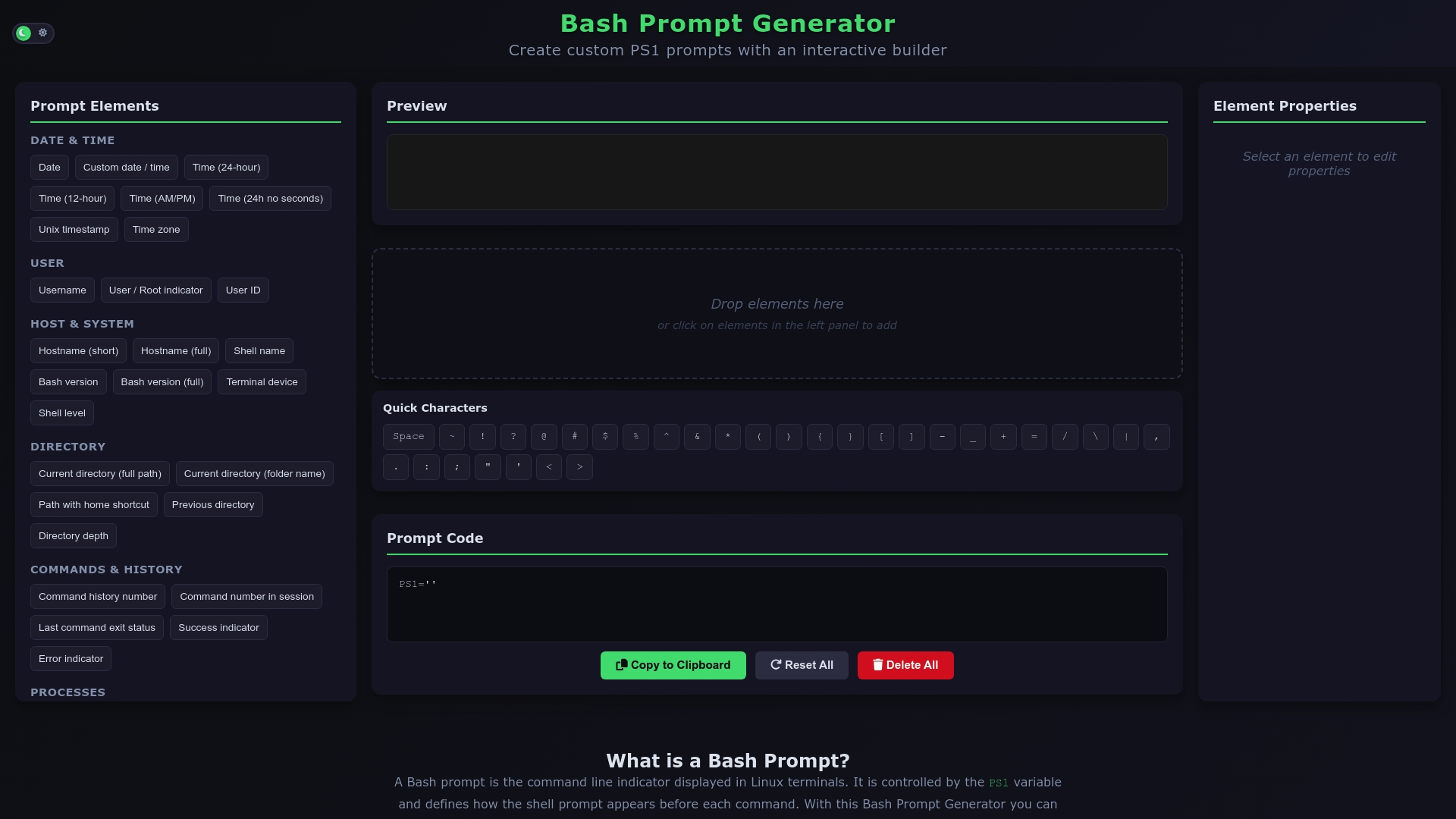
Select components like username, directory, git branch, and exit status through intuitive controls. Choose colors and formatting with real-time preview showing exactly how your prompt will appear. Export valid PS1 code ready to paste into your shell configuration. The Bash prompt customization tools at neikiri.dev save hours of trial and error while ensuring your prompts follow best practices for performance and compatibility. Build prompts that work flawlessly across your entire infrastructure in minutes instead of days.
FAQ
What are the main benefits of prompt formatting?
Formatted prompts display essential context like current user, working directory, git branch, and previous command exit codes directly in your terminal. This immediate visibility reduces navigation errors and speeds troubleshooting by eliminating the need to run separate commands to check your location or command status. Color coding creates visual patterns your brain processes faster than reading text, while multi-line layouts improve readability for complex commands.
How do ANSI escape codes work in prompt customization?
ANSI escape codes are special character sequences that terminals interpret as formatting instructions rather than displayable text. They specify text color, background color, bold, underline, and other visual attributes. In Bash prompts, these non-printing codes must be wrapped in \[ and \] brackets to prevent the shell from miscalculating line length, which causes cursor misalignment when editing commands. Zsh handles this wrapping automatically through its percent escape system.
Which shell is better for prompt customization, Bash or Zsh?
Zsh provides more advanced theming capabilities, better right-side prompt support, and automatic handling of non-printing characters, making complex customizations easier. However, Zsh has slower startup times and less universal availability than Bash. Bash offers faster performance, broader compatibility across systems, and remains the standard for scripting and server environments. Choose Zsh for interactive desktop use where you want extensive customization, and Bash for servers, scripts, and situations requiring maximum portability.
How can I avoid performance issues with complex prompts?
Minimize external command calls in your PROMPT_COMMAND or prompt functions by using shell built-ins whenever possible. Avoid expensive operations like git status in large repositories or network queries that introduce latency. Test your prompt rendering speed over SSH connections to catch performance problems before they impact your workflow. Tools like prmt optimize for sub-millisecond rendering, while heavier frameworks may add noticeable delay. Keep your prompt information focused on essential context rather than displaying every available metric.